How to Redeem Thirsty Grandpa Codes
Exact redemption flow for PC, mobile, and console via Roblox — plus troubleshooting for a brand-new simulator.
Before you start
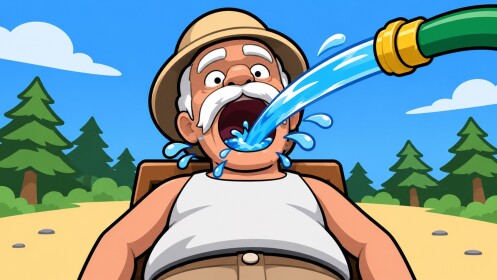
Thirsty Grandpa is a free Roblox incremental simulator by Only Original Games. Codes, when they exist, are redeemed inside the live experience, not on this wiki and not on random “generator” sites.
As covered on the Codes Hub, no confirmed active codes are listed yet for the November 2026 launch window. Learn the redemption UI now so you can claim the first drop instantly.
Related reading: Getting Started, Updates Hub, Players & Community.
Step-by-step: PC (Roblox Player or browser)
- Launch Roblox and open Thirsty Grandpa.
- Press Play and wait until you fully load into a server (servers hold up to 16 players).
- Scan the HUD for buttons labeled Codes, Twitter, X, Gift, Rewards, or a gear/settings icon that opens a codes tab.
- Click the button to open the code input field.
- Type or paste the code exactly as published (case and spelling matter).
- Press Redeem, Submit, or the checkmark.
- Watch for a success toast. Then verify coins, water capacity, or inventory for the reward.
If nothing happens, see troubleshooting below before assuming the code is fake.
Step-by-step: Mobile (iOS / Android)
- Open the Roblox app and search Thirsty Grandpa (listing may show as Thirsty Grandpa?? or with the grandpa emoji).
- Join the experience and wait for the UI to finish loading — mobile HUDs sometimes delay secondary buttons.
- Tap the Codes / Gift / Rewards icon. On small screens it may sit behind a Menu or hamburger panel.
- Enter the code carefully; mobile autocorrect can break codes. Disable autocorrect or paste from a notes app.
- Confirm redemption and check your coin and tool stats.
Touch controls for collecting water are covered in Controls. Redeem first if a limited code is live, then resume farming.
Console via Roblox
On console, use the on-screen keyboard for the code box. Prefer pasting from a linked account message if your platform supports it. Avoid typing long mixed-case codes from memory.
What a successful redeem looks like
Typical feedback in Roblox simulators:
- Green success message with reward summary
- Instant coin or gem balance increase
- Temporary multiplier buff icon near your stats
- New tool or item appearing in your hotbar / inventory
After a good redeem, open the shop and follow the Upgrade Checklist so free currency becomes more water per trip instead of impulse buys.
Troubleshooting failed codes
| Problem | Likely cause | What to do |
|---|---|---|
| “Invalid code” | Typo, wrong case, or fake list | Retype carefully; compare to Codes Hub |
| “Already redeemed” | One-time code on your account | You already got it — check balances |
| “Expired” | Timed event over | Move it mentally to expired; wait for next drop |
| No Codes button | Feature not shipped yet | Recheck after patch notes |
| Button does nothing | UI lag or softlock | Rejoin server; avoid overcrowded instances |
| Reward missing | Visual delay | Rejoin once; confirm you were not in a private broken server |
Extra checks that fix most issues
- Leave and rejoin the experience after a major update.
- Make sure you are in the latest published place (placeId
137992029952947). - Disable VPN overlays that break Roblox HTTP calls.
- Confirm you did not already redeem on an alternate account you forgot about.
Group rewards vs typed codes
Joining the Only Original Games community is separate from typing codes. Some games grant a small boost while you remain in the group. Join early, keep membership active, and still watch for typed codes on this wiki’s Codes Hub.
Scams to avoid
- Sites that ask for your Roblox password to “check codes”
- Players selling “lifetime code packs” for Robux trades
- Browser extensions that inject free currency (often steal sessions)
- Fake Discord “support” staff asking you to verify with a code login
This wiki will never ask for your password. For risky automation discussion, see Scripts and treat every executor as an account ban risk.
After you redeem: smart spend order
Thirsty Grandpa’s progression is simple but easy to mis-spend:
- Increase water capacity so each lake trip carries more.
- Improve collection speed or tool tier (bucket → can → jug → larger vessels).
- Only then buy comfort upgrades or cosmetics.
Deep guides: How to Upgrade, Water Farming, Tools Tier List.
Checklist: ready for the first code drop
- Game favorited on Roblox for quick launch
- Only Original Games group joined
- Codes Hub bookmarked
- Know where the HUD Codes button should appear
- Autocorrect disabled for paste-friendly redeeming
- Upgrade plan ready via Upgrade Checklist
When official codes appear, redeem immediately, then return to feeding Grandpa — thirst waits for no one.
Frequently Asked Questions
Quick answers about water, upgrades, and codes.
Can I redeem codes on the Roblox website without joining the game?
No. Thirsty Grandpa codes are redeemed in the experience UI after you join a server, not on the Roblox website store page.
Are codes case-sensitive?
Usually yes on Roblox experiences. Paste exactly as shown on the Codes Hub and avoid extra spaces.
I do not see a Codes button. Is the guide wrong?
The game is very new. The Codes UI may not be enabled yet. Recheck after updates on the Patch Notes page.
Do codes work on mobile and console?
If the Codes UI exists in your build, yes — same account progress. Mobile players should watch for autocorrect changing the code string.
Where is the full list of active codes?
On the Codes Hub. That page stays empty of fake entries until a verified code is confirmed.